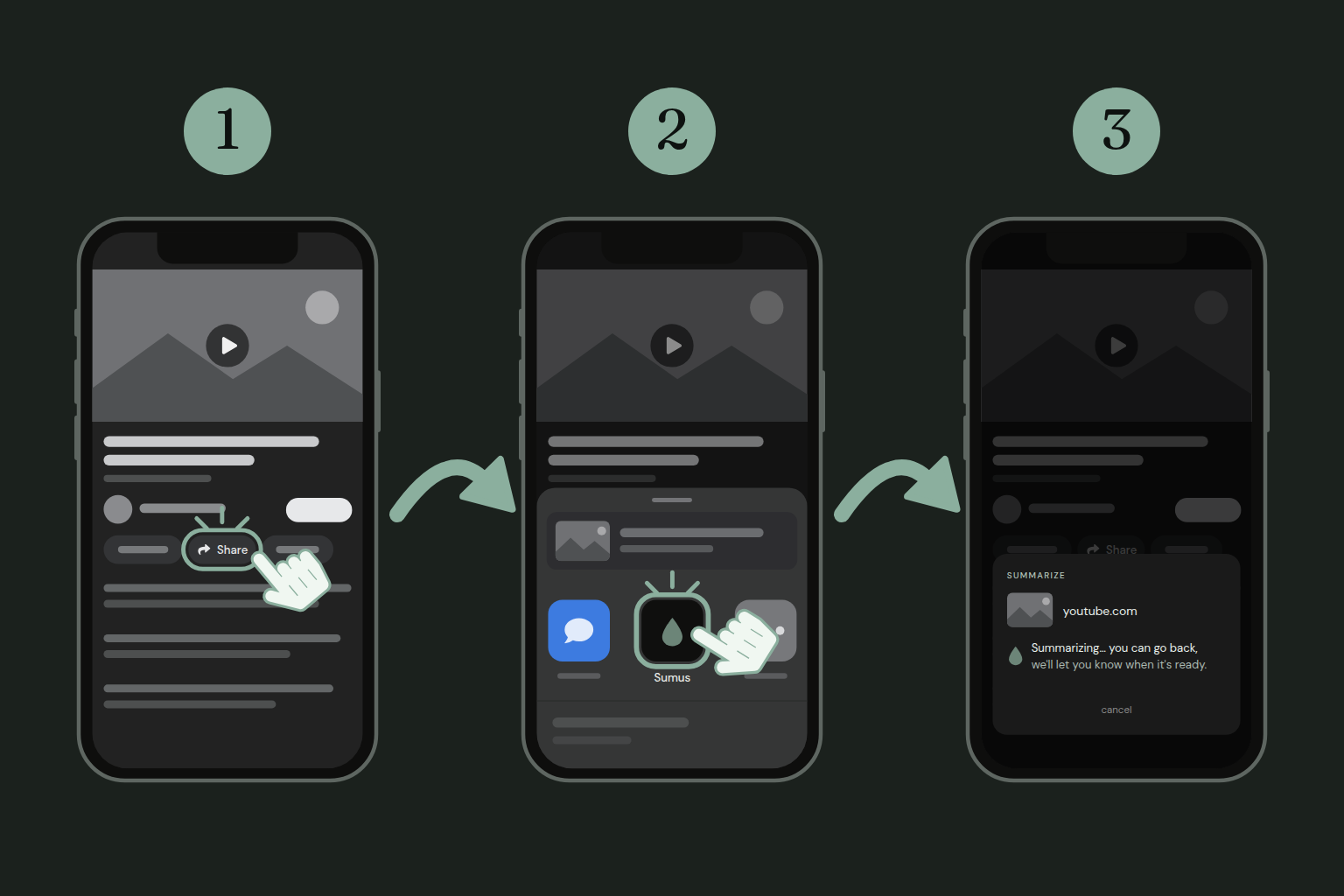
In YouTube, your browser or any app with a link, tap Share.
In the list that opens, tap Sumus.
That's it. The summary starts on its own, with the preferences you set in the app. Go back to what you were doing: sumus lets you know when it's ready.
Sign in to the app once first. On iPhone, if Sumus isn't in the row of apps, scroll to the end and tap More to turn it on.
Play everything in a queue
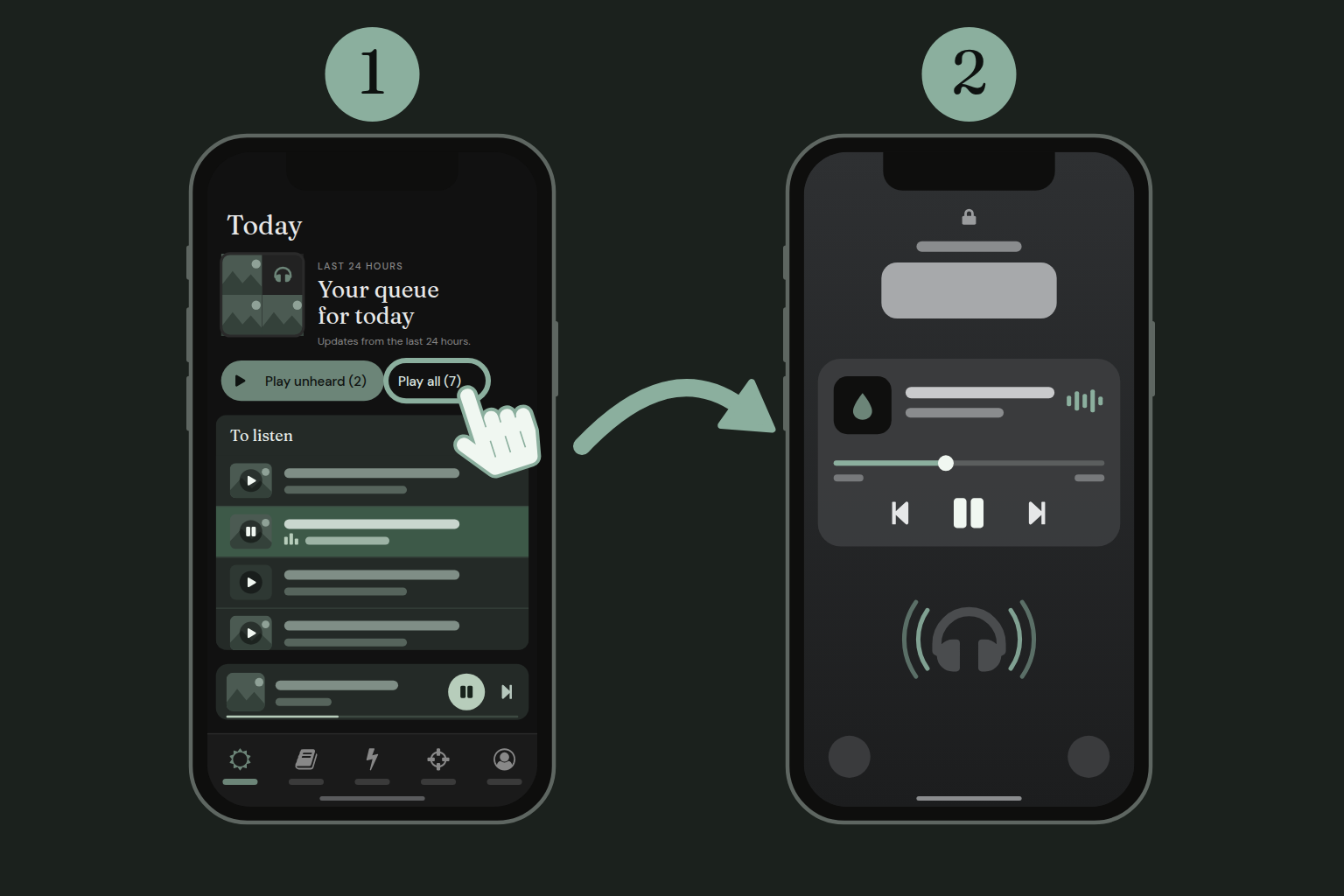
On the Today tab, tap Play all.
Summaries play one after another. Pause and skip from the lock screen or your headphones.
Get summaries on Telegram or WhatsApp
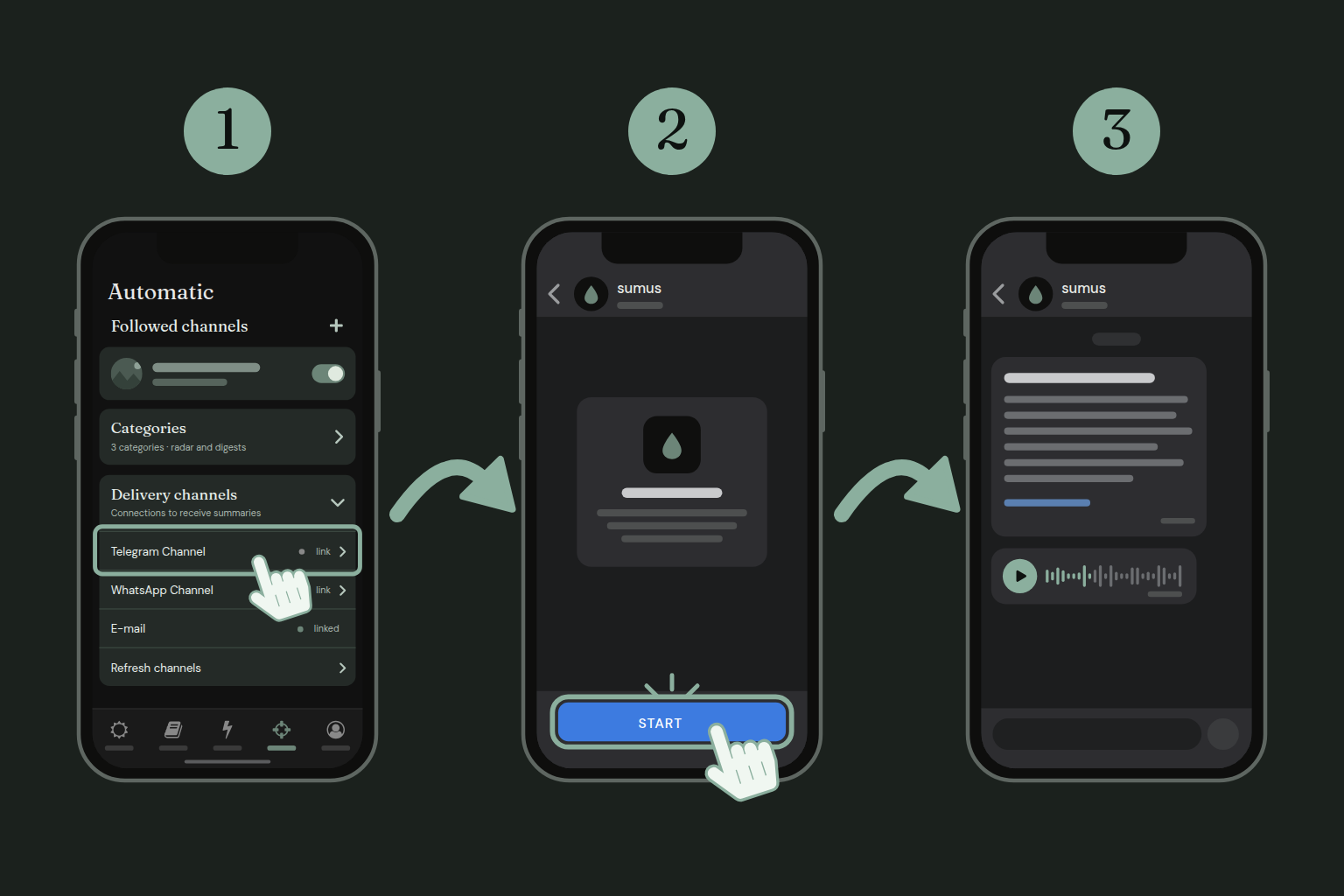
On the Automatic tab, open Delivery channels and tap Telegram Channel.
The sumus chat opens in Telegram: tap Start.
Pick Telegram as a destination on the Capture tab. Summaries arrive in the chat as text and audio.
WhatsApp works the same way. Messages come from +1 947-729-2550, still without the sumus name.
Follow a YouTube channel
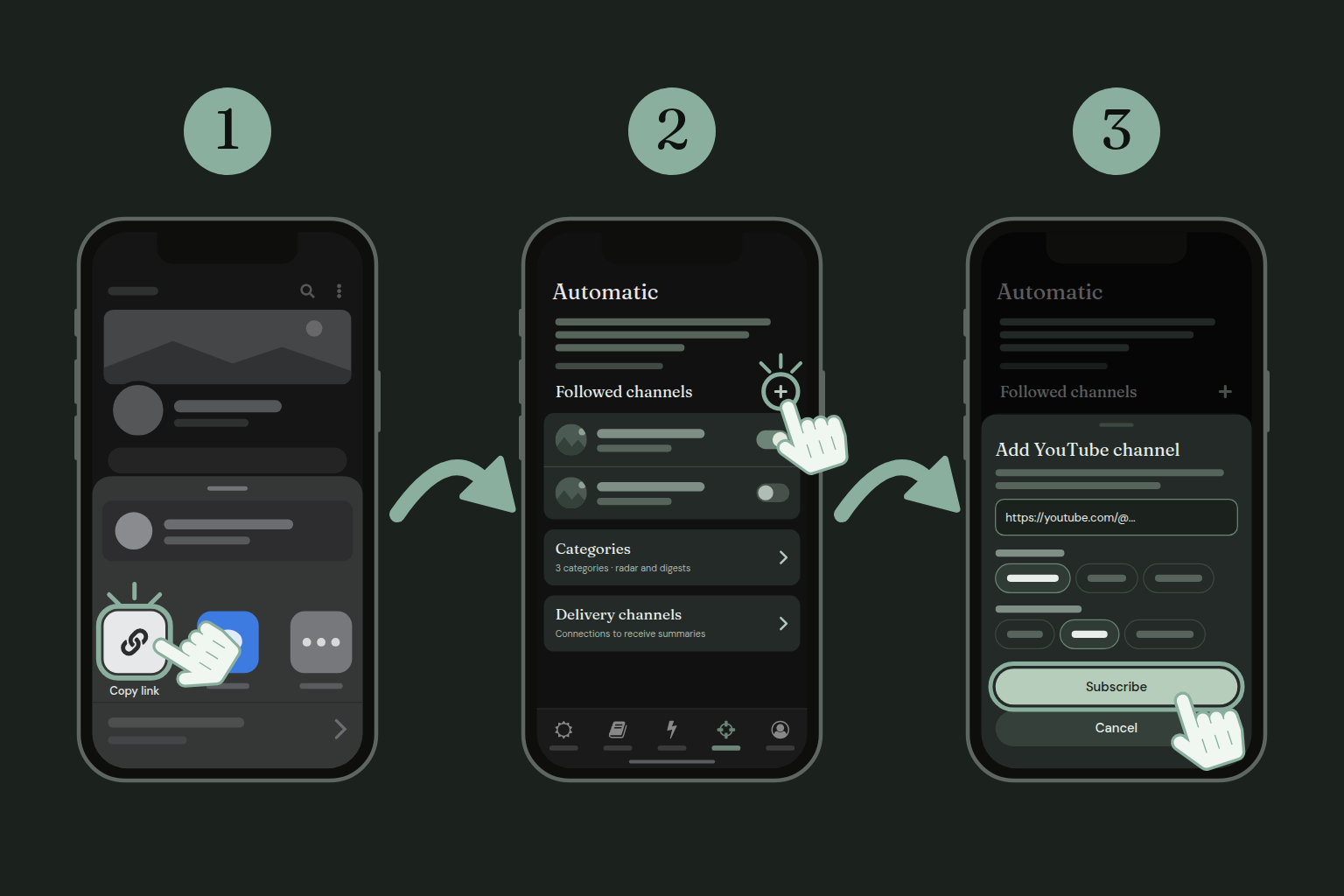
In the YouTube app, open the channel and tap Share › Copy link.
In sumus, on the Automatic tab, tap the + next to Followed channels.
Paste the link, pick language and concentration, and tap Subscribe.
Every new video from the channel becomes a summary on its own. A paid-plan feature.
On your computer
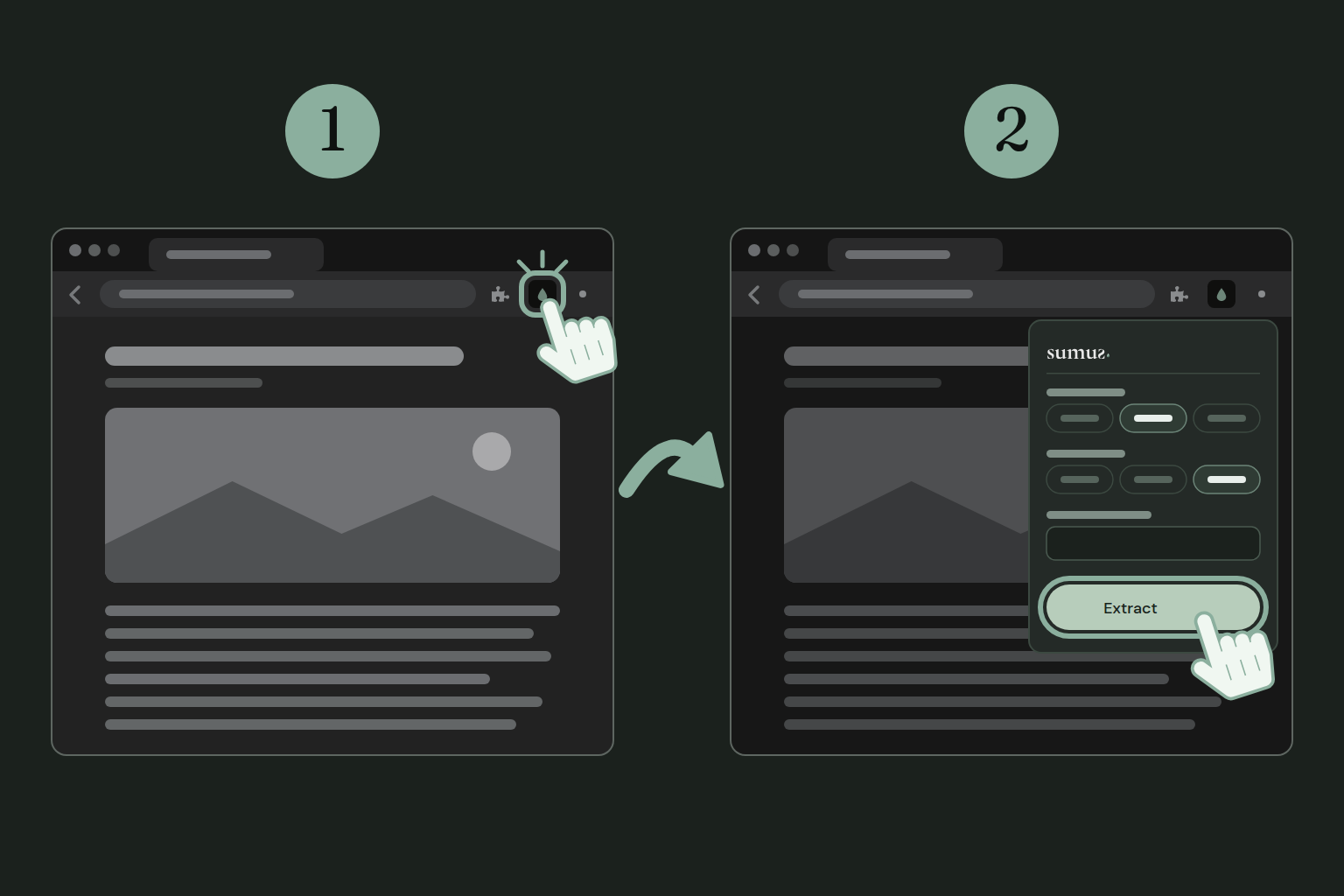
Summarize from the Chrome toolbar
On the page you want to summarize, click the sumus drop in the Chrome toolbar.
Pick the concentration and format, then click Extract.
The popup is also where you sign in the first time.
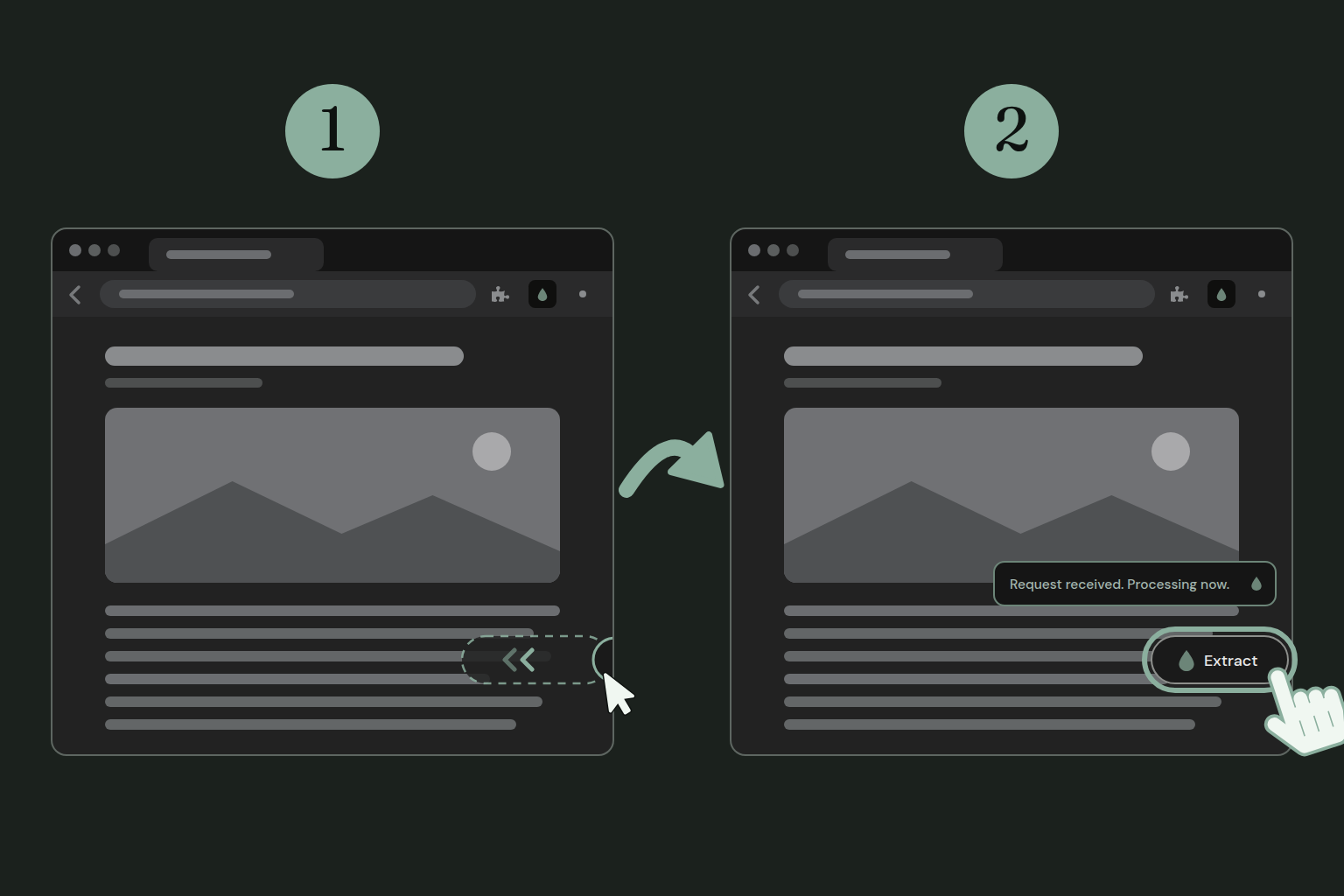
Summarize from the edge tab
On any page, move the mouse to the right edge: the tab with the drop slides out.
Click Extract. A notice confirms the request arrived.
It uses the preferences saved in the popup. On YouTube videos the tab is already open.
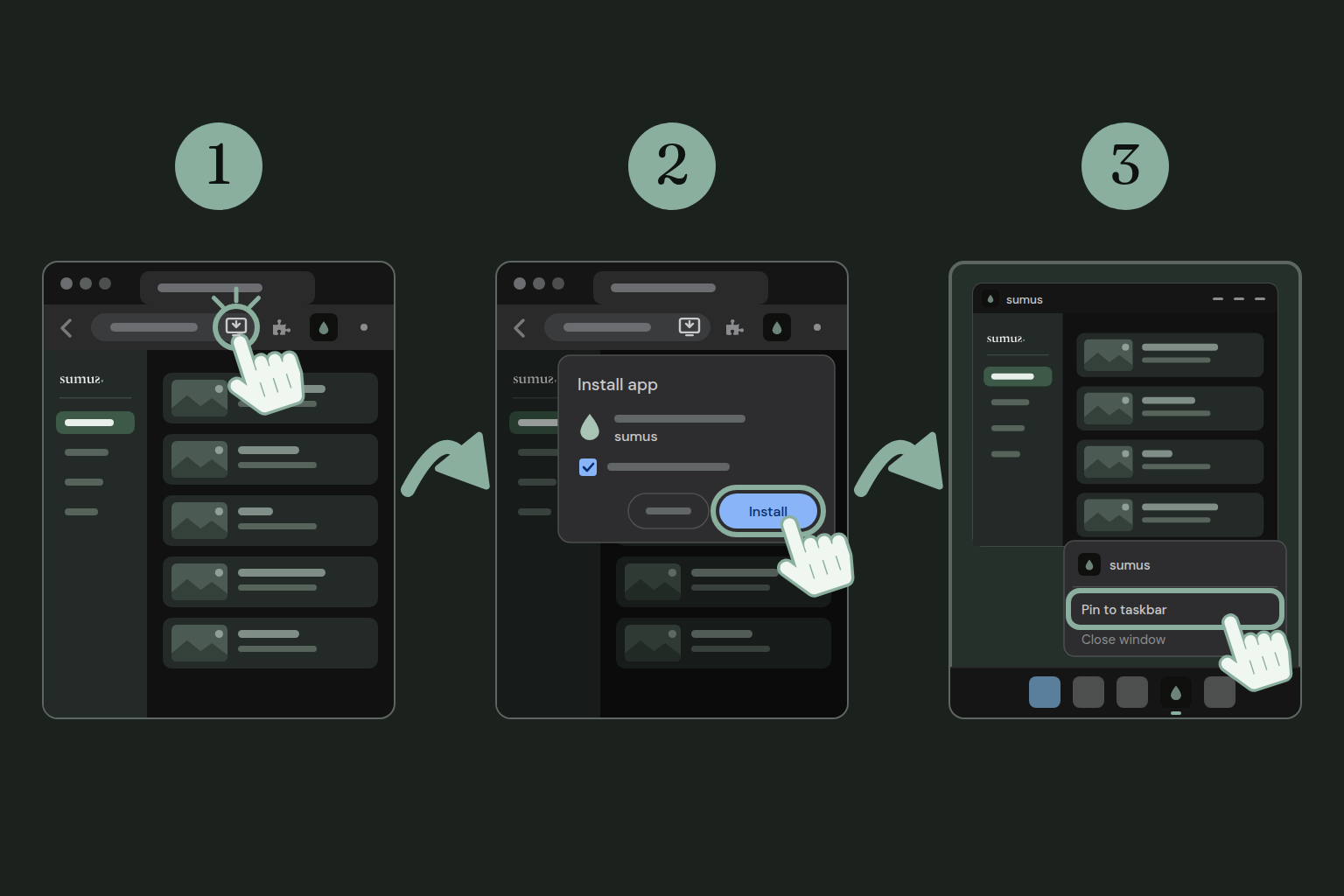
Install the app on your computer
In Chrome or Edge, open web.sumus.app and click the install icon at the end of the address bar.
Click Next, then Install. sumus opens in its own window, without tabs, and is added to the Start menu with a desktop shortcut.
With the app open, right-click its icon on the taskbar and choose Pin to taskbar.
If the install icon doesn't show, look for the install option in Chrome's ⋮ menu. You can also pin it from the Start menu: search for sumus, right-click it and choose Pin to taskbar.
The illustrations show the app's new look, which reaches the stores in the next updates. If your version looks a little different, the steps are the same.